Monthly
$4.99/ month
Cancel anytime.
- Every feature and update
- 1 Mac
- Valid while your subscription is active
Zubarh turns your MacBook's notch into a live space for the song that's playing, your messages, incoming calls and Claude Code. Hover to open it: your shelf, clipboard, calendar, terminal and timer live there.
English and Turkish. Distributed outside the App Store and notarized by Apple: download it and open it. Installing takes a minute.
You’ll be able to download it here very soon. English and Turkish; notarized by Apple.
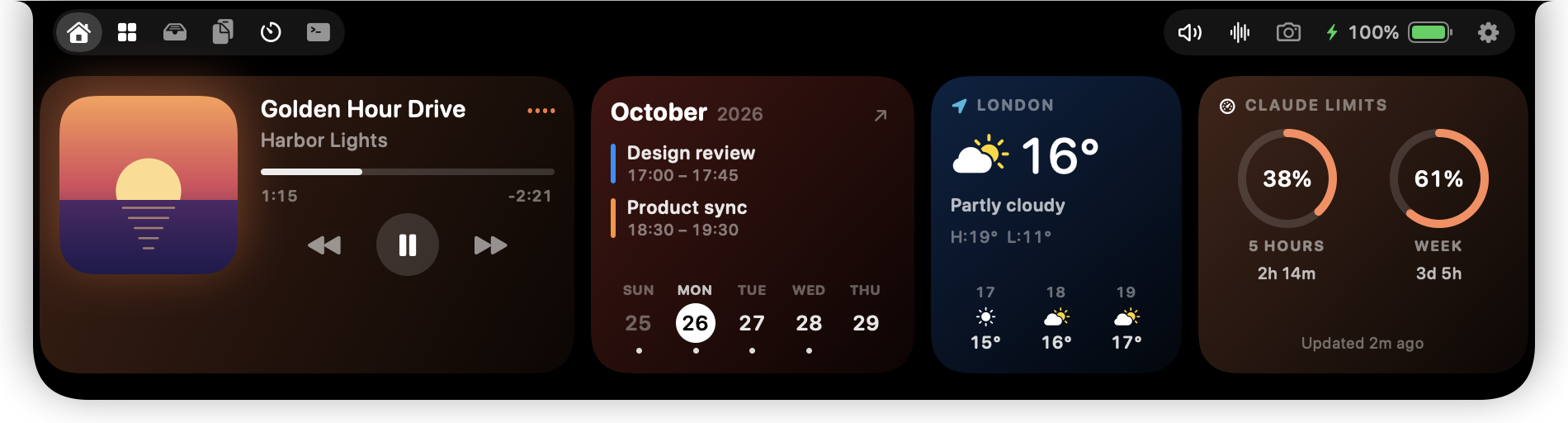
The notch changes on its own. When something happens, it grows down and the text drops below the camera; when it's done, it shrinks back to either side of the camera. Here's an ordinary Tuesday.
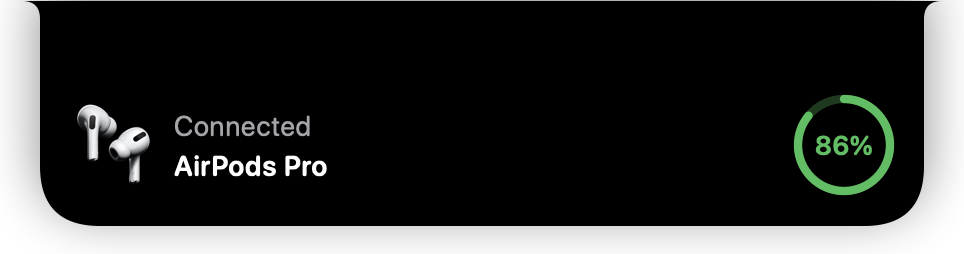
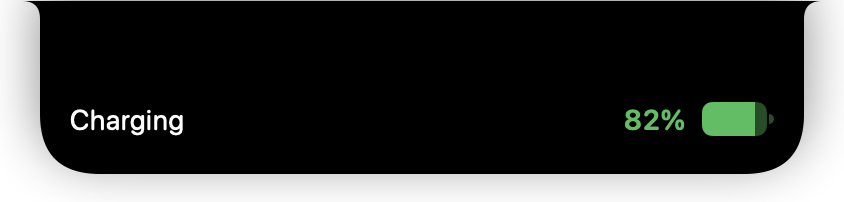
When they connect, you see the device and its battery level. Same for keyboards, mice and game controllers.
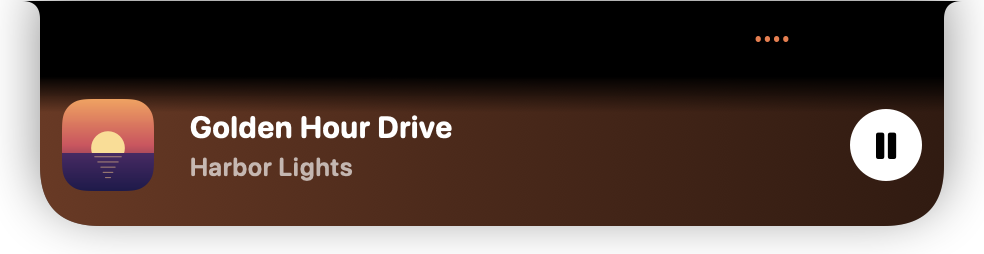
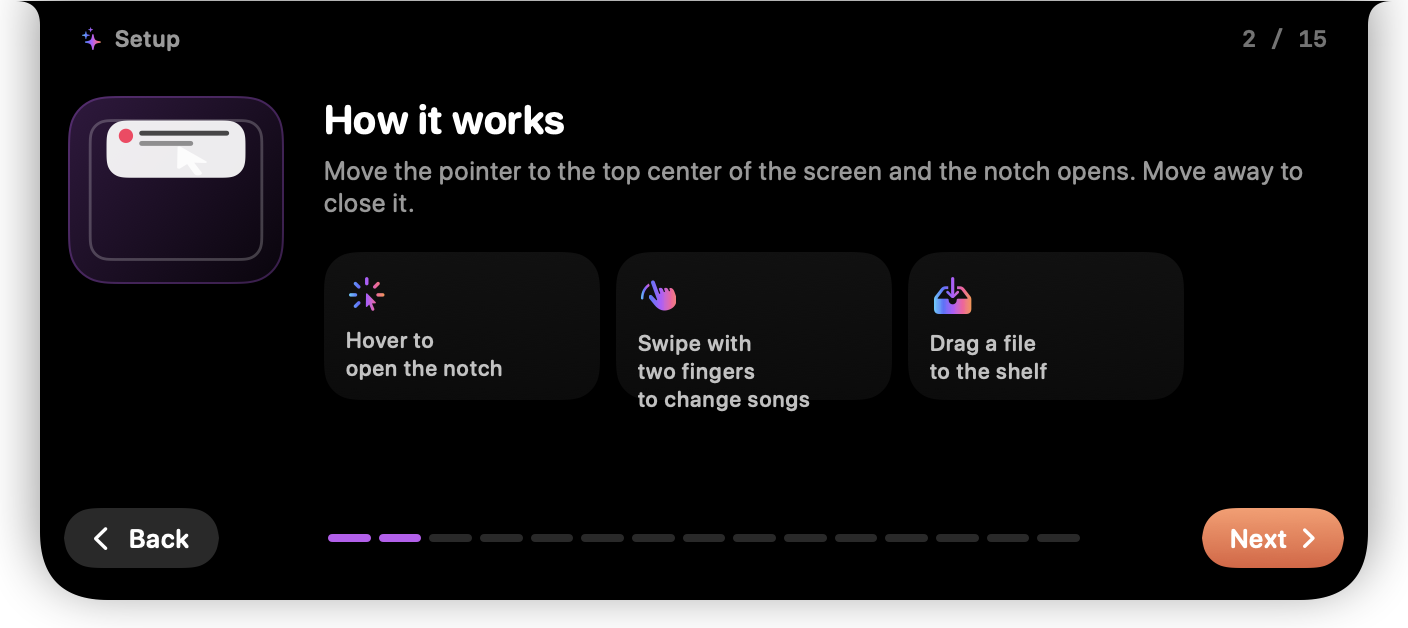
The notch grows for a few seconds to show the song title and artwork, then steps aside. Works with Spotify, Music and anything playing in your browser. Swipe left or right with two fingers on the notch to change songs.
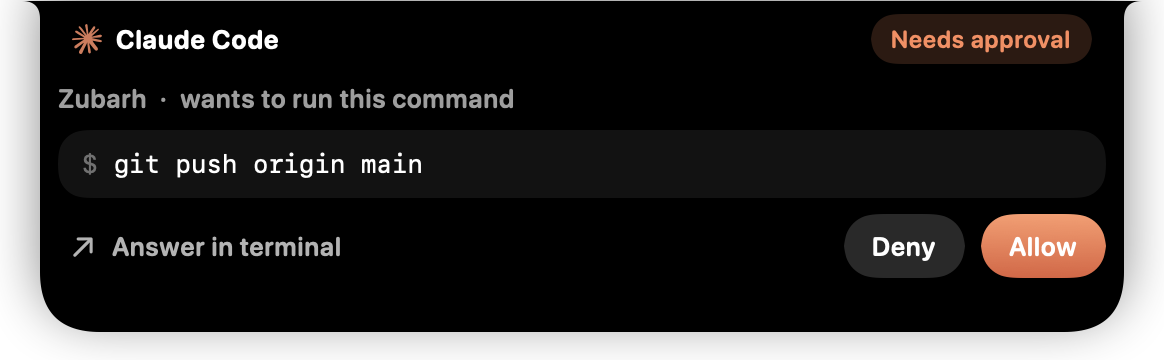
See the command without switching to the terminal, and choose “Allow” or “Deny” right in the notch. If you don't answer within 6 minutes, the prompt opens in the terminal as usual.
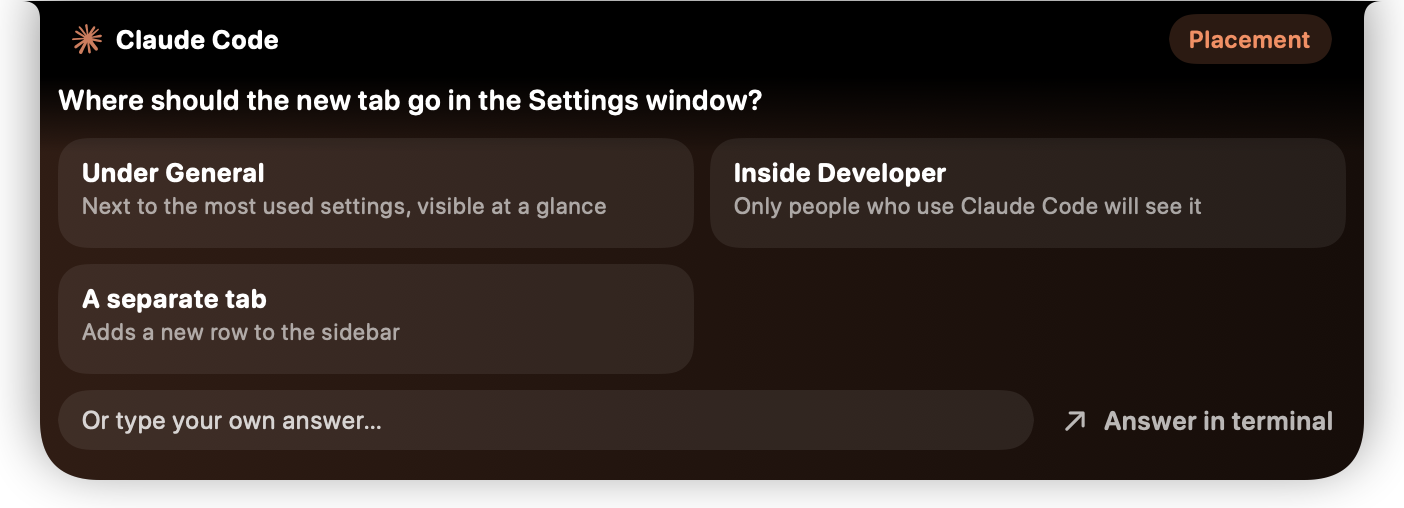
The options and their descriptions appear in the notch. Click one, or type your own answer. Long questions get a taller box.
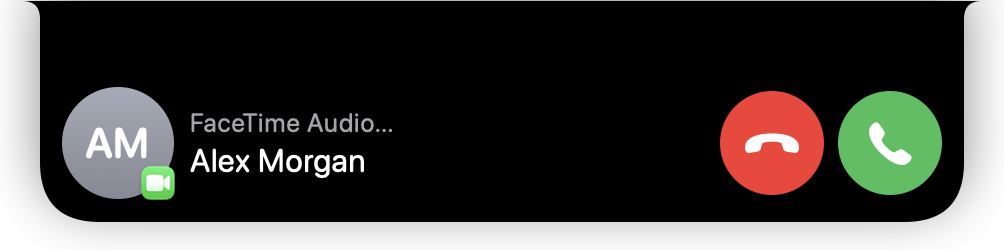
The caller's name with Decline and Accept. For FaceTime, phone and WhatsApp calls.
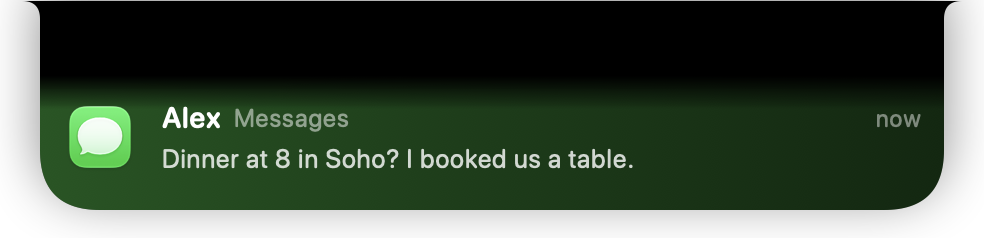
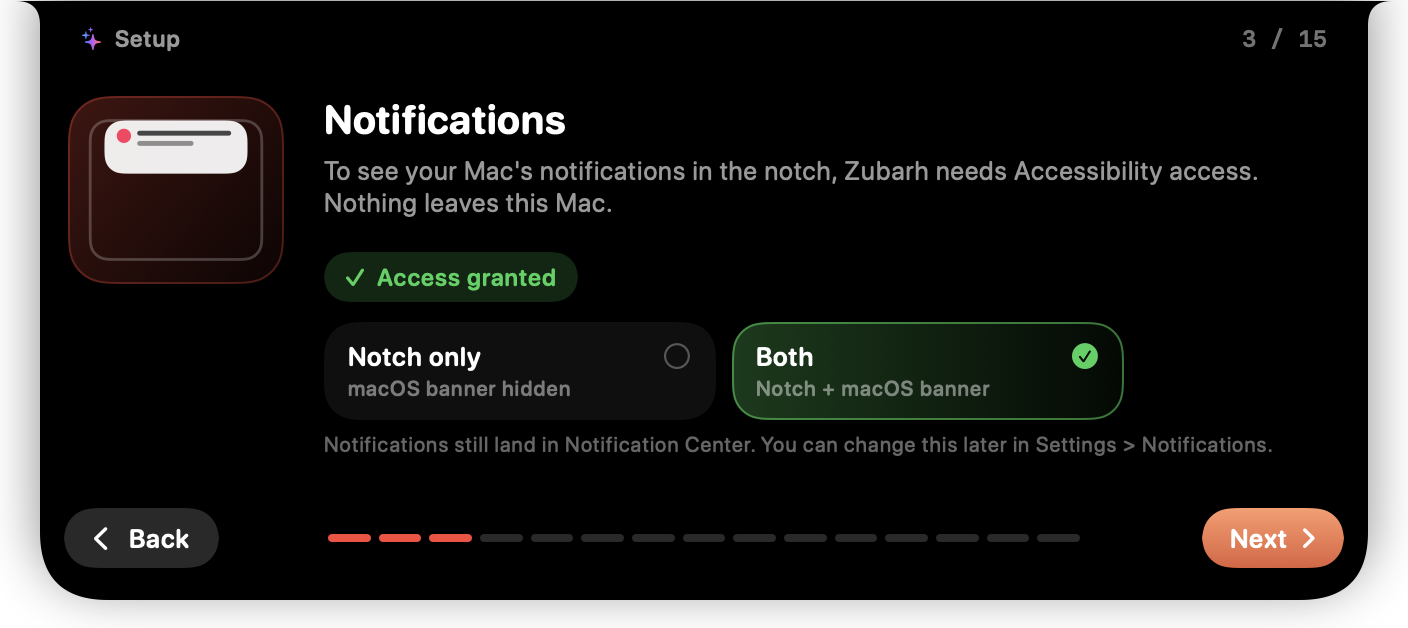
The notification appears in a box tinted with the app's color; click it to open the chat. If you like, the macOS banner never shows up, and the notification still lands in Notification Center.
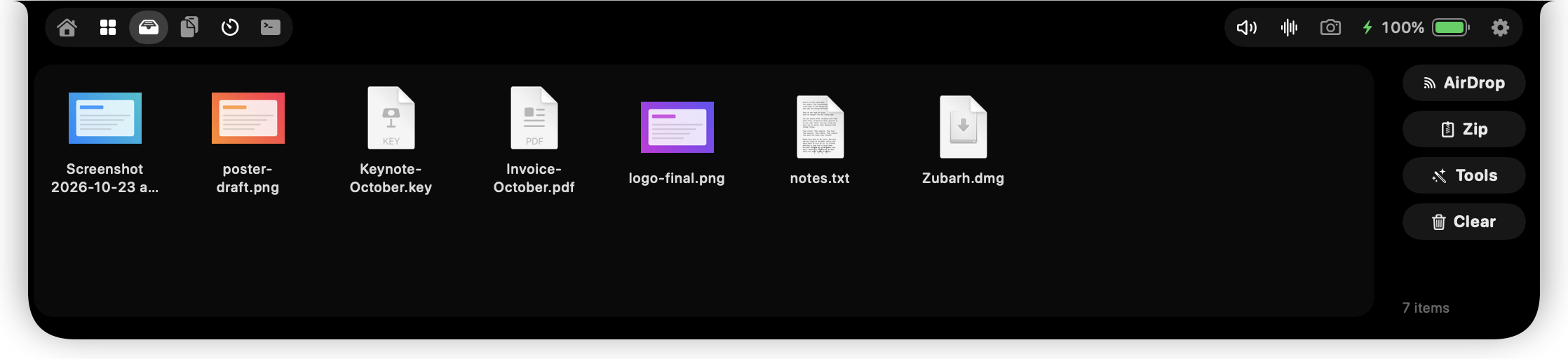
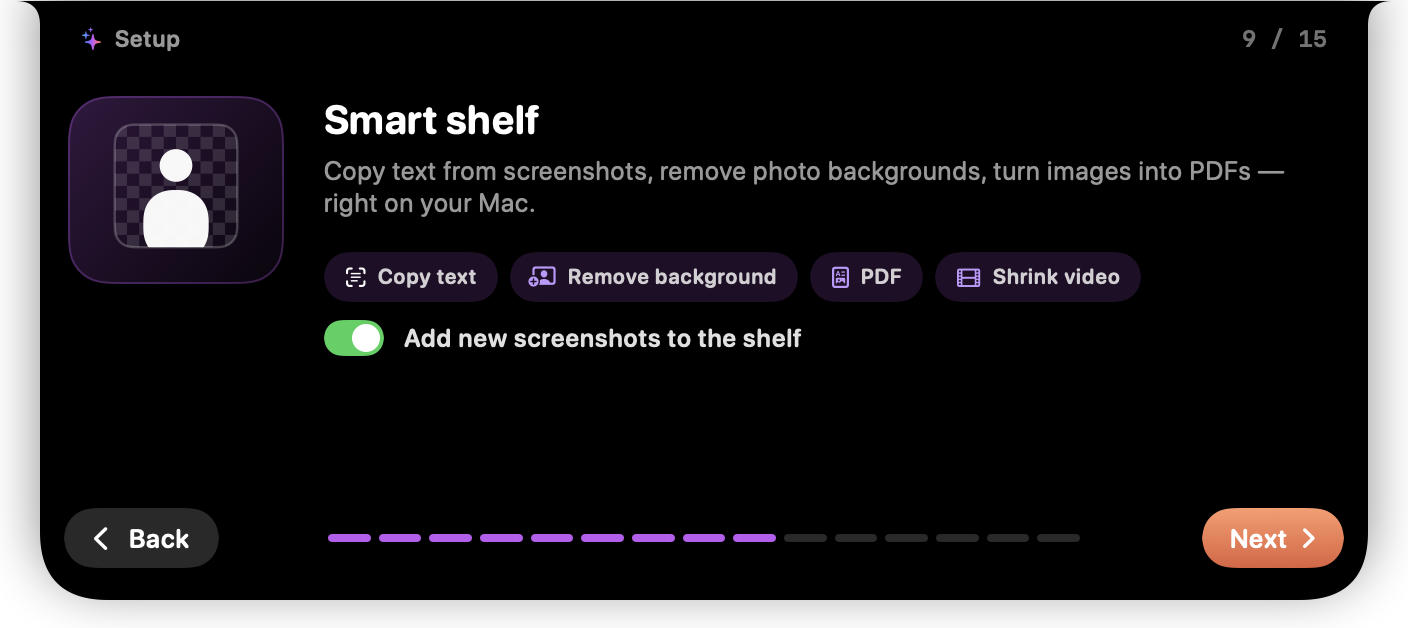
Drag a file to the notch and it lands on the shelf. Screenshots are added automatically. The shelf copies text from images, reads QR codes, removes backgrounds, shrinks images and makes PDFs.
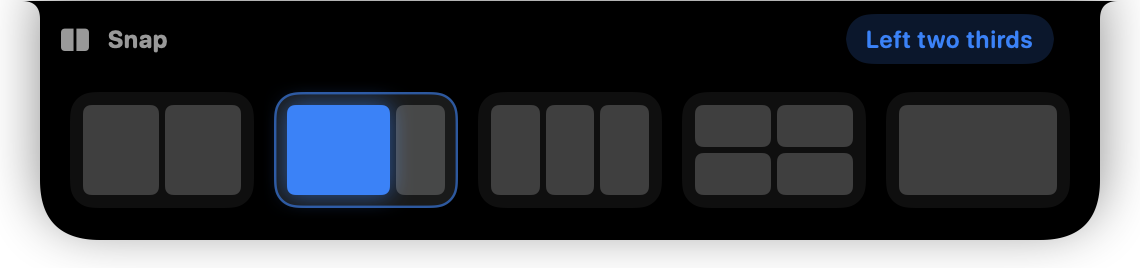
While dragging a window, move the pointer to the notch and drop it on one of the half, third, quarter or full-screen cards.
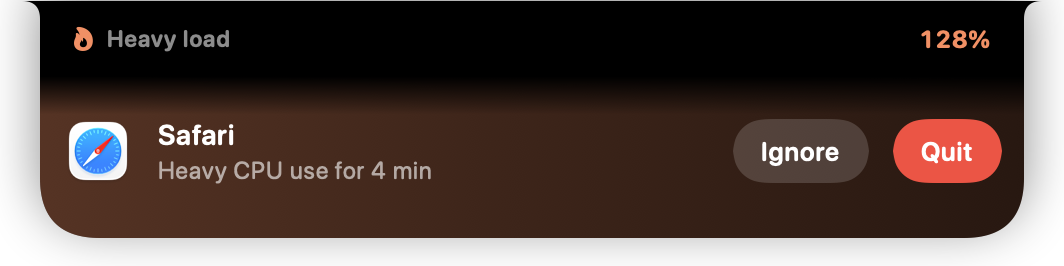
When an app hogs the CPU in the background for minutes, you hear about it, and choose “Quit” or “Ignore” before the fans spin up.
The timer keeps running in the closed notch and tells you when it's done. That's a wrap.

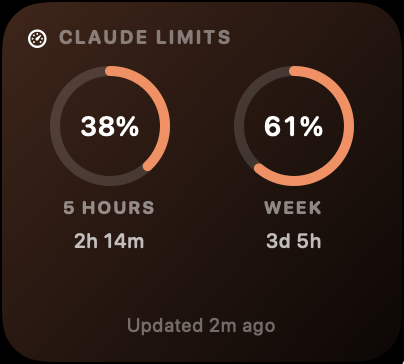
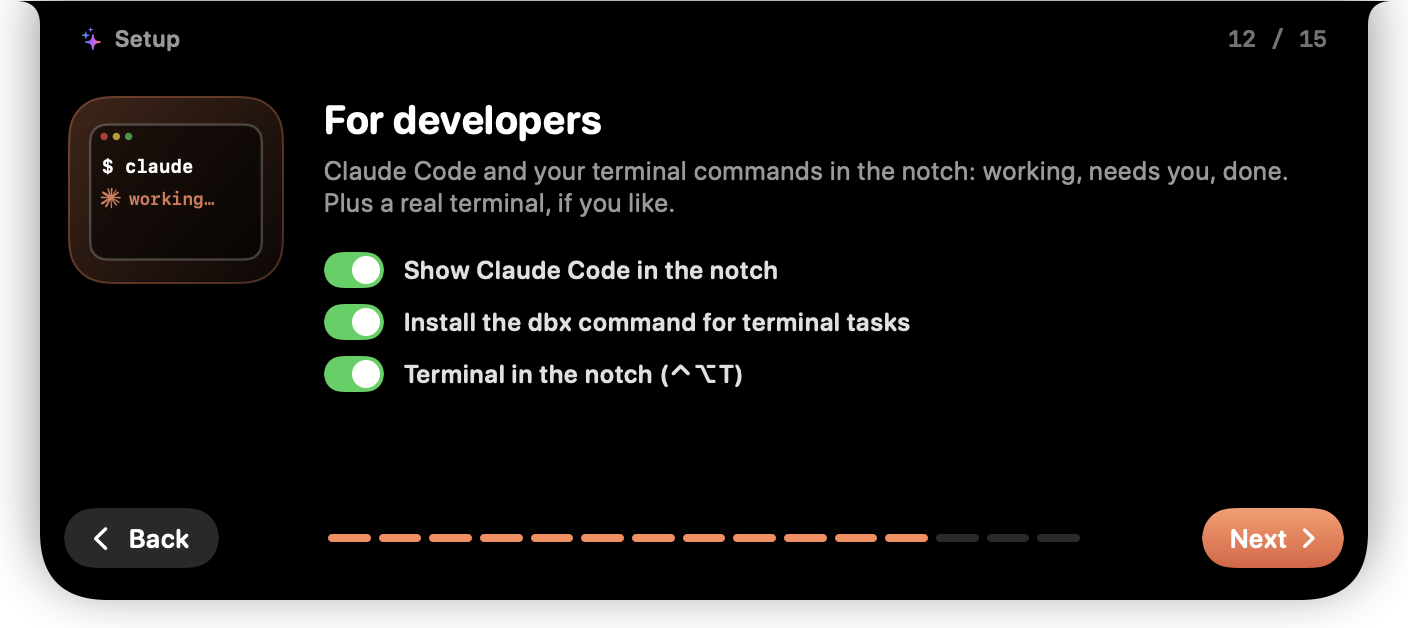
The notch tells you when Claude is working, waiting for you and done. Answer its permission requests and questions without switching to the terminal, and see your plan's limits on Home.
{
  "hooks": {
    "UserPromptSubmit": [ … "dbx claude working" ],
    "PostToolUse":      [ … "dbx claude working" ],
    "Notification":     [ … "dbx claude waiting" ],
    "Stop":             [ … "dbx claude done" ],
    "SessionEnd":       [ … "dbx claude end" ],
    "PermissionRequest": [ … "dbx claude-permission" ],
    "PreToolUse": [ { "matcher": "AskUserQuestion",
                      … "dbx claude-question" } ]
  },
  "statusLine": { "command": "dbx statusline en" }
}Turn the integration on in Settings › Developer; your previous file is kept as settings.json.dynamicbox-backup. Turning it off removes only the lines Zubarh added; your own hooks and status line are left alone. Limits come from what Claude Code already passes to its status line; your account, Keychain and session keys are never touched.
A real shell, one shortcut away from anywhere. The notch grows down the screen; close it and your sessions and running commands keep going.
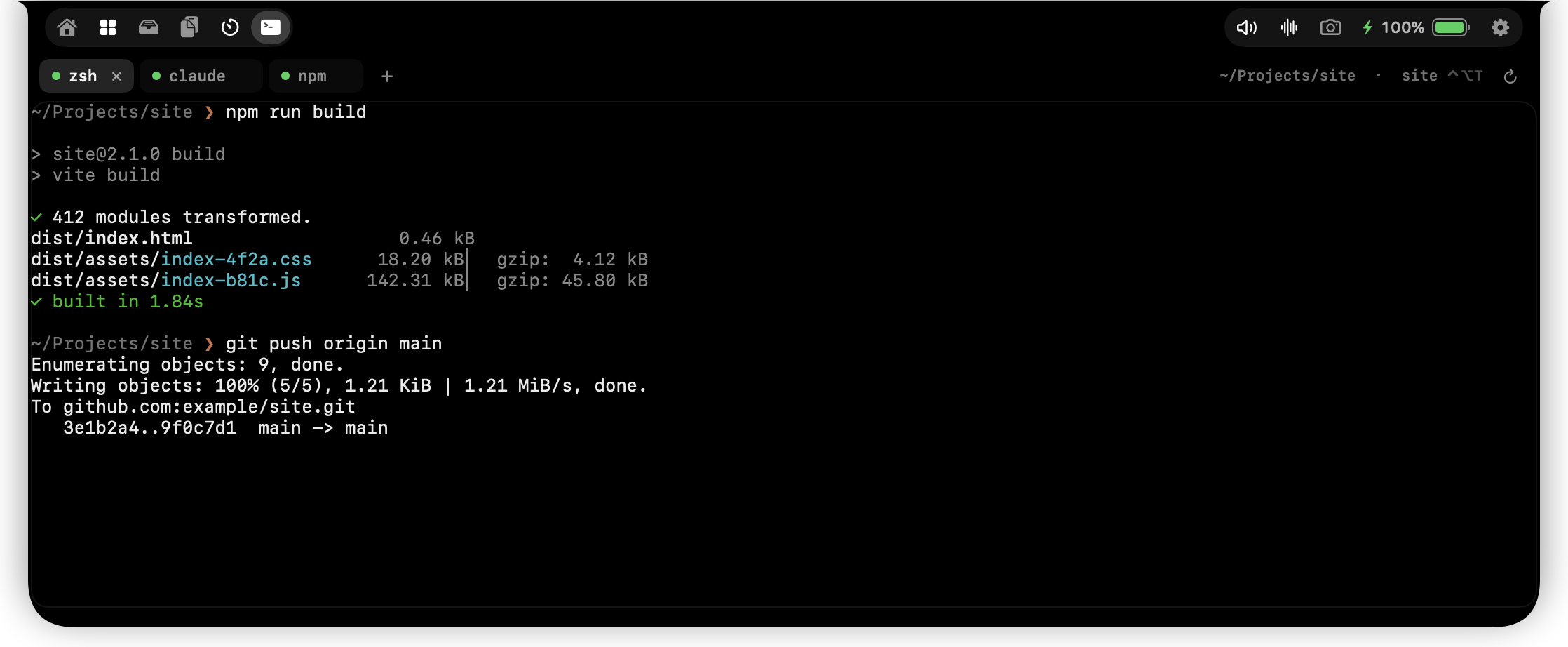
dbx run npm run buildShows in the notch while it runs, then ✓ or ✗.dbx notify "Backup done"A notification in the notch.dbx progress 0.4 "Upload"A progress bar that closes at 1.Move the pointer to the notch and it opens; move away and it closes. Tabs on the left; the sound mixer, voice notes, mirror and battery in the bar on the right.
Cards in their own colors: music player, calendar, weather, Claude limits, pinned items, timer and menu bar icons. You choose which ones show and in what order, and the layout can change with the app in front. The menu bar card shows the icons hiding behind the notch.
Settings › Home
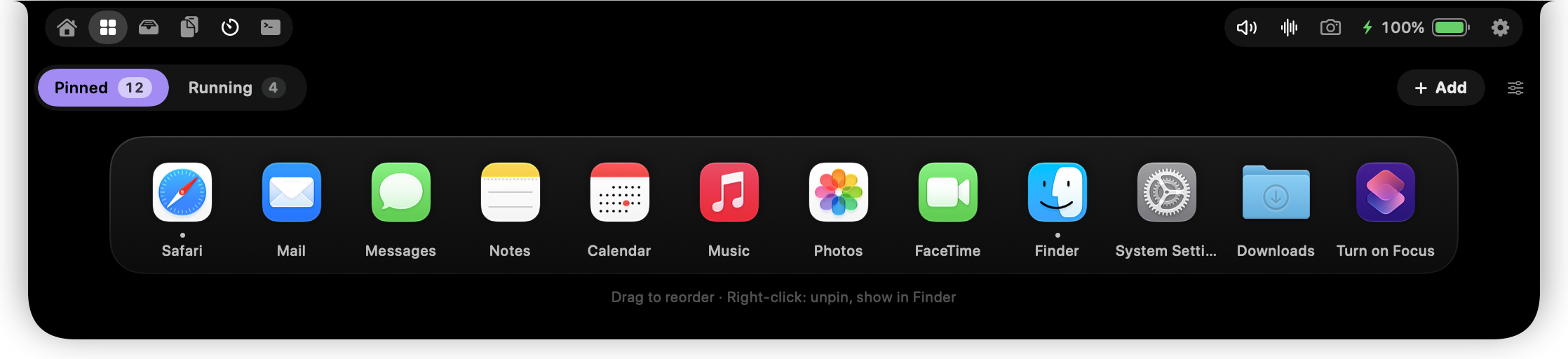
Pinned apps, websites, folders, files and Shortcuts open with one click. “Running” shows the apps that are open right now. Drag a file onto this tab to pin it; click a Shortcut to run it.
Settings › Pinned
Drag a file to the notch and the shelf opens by itself. Scroll when there are lots of files. “Zip” puts them all in one archive, AirDrop sends them, and “Tools” copies text, reads QR codes, removes backgrounds, converts images, and makes and merges PDFs.
Settings › Shelf, Clipboard & Notes
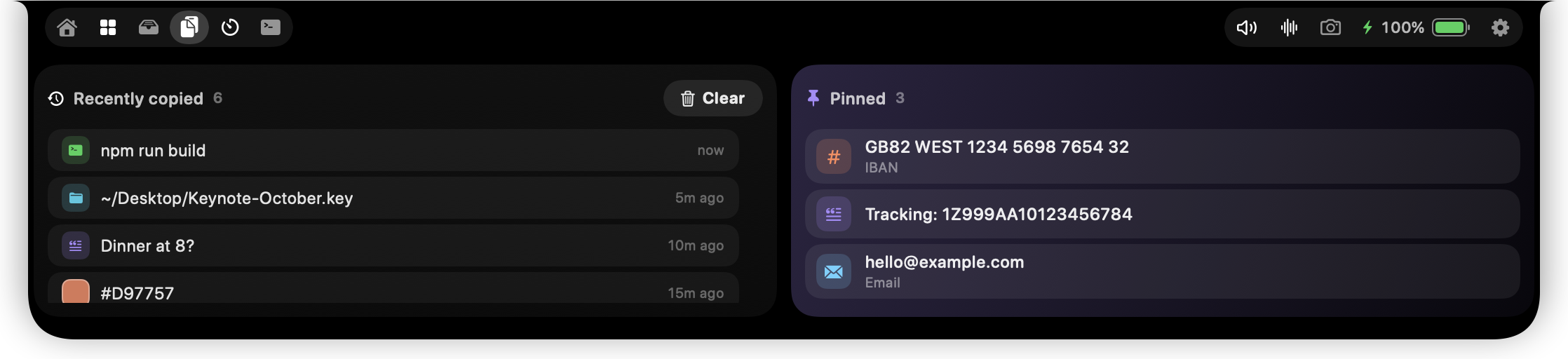
Recent copies on the left, your pinned ones on the right. Click to copy again. Pinned items survive “Clear” and a full history; drag to reorder them or drop them into another app.
Clipboard history never leaves this Mac.
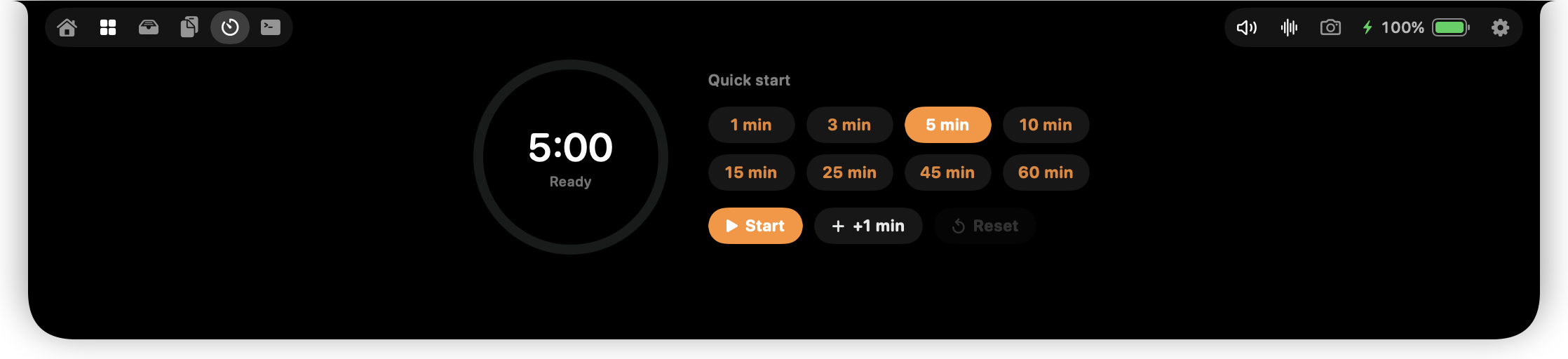
Presets from 1 to 60 minutes. The countdown keeps going in the closed notch, which tells you when time's up. Turn on the focus guard and the notch gives a little shake if you switch to something distracting like YouTube or Instagram while the timer runs.
Settings › Meetings and Focus › Focus guard
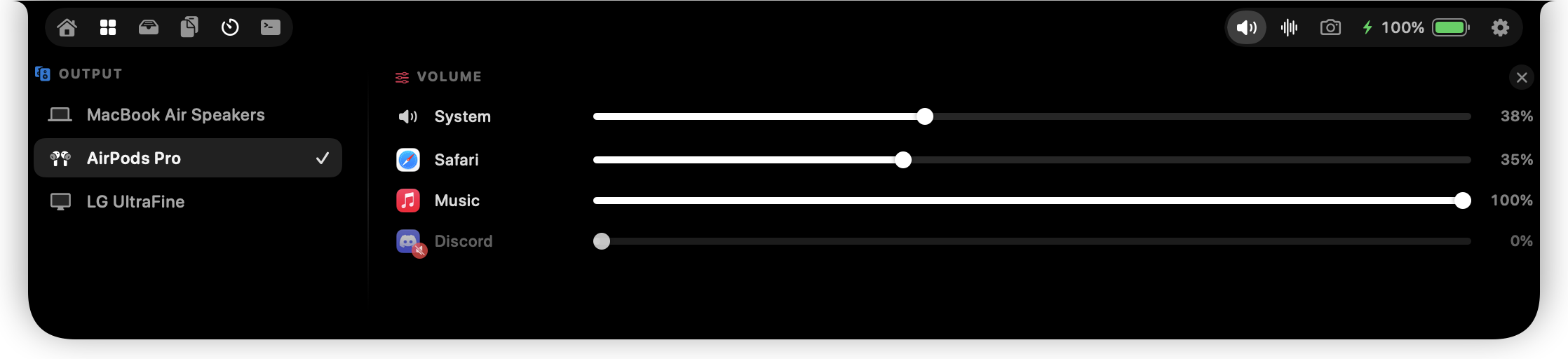
The output device on the left: speakers, AirPods or a display, in one click. Each app's own volume on the right: Safari 35%, Music 100%, Discord muted. Nothing is recorded; only the level changes.
The speaker icon in the top bar
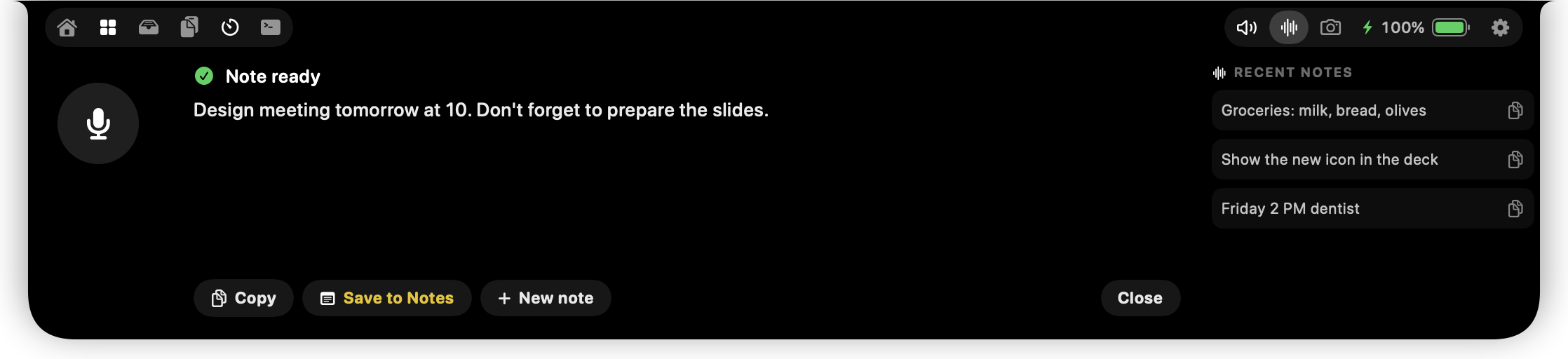
Press the mic and talk. Your note is transcribed on device; copy it or save it to Notes. Recent notes stay on the right.
The waveform icon in the top bar
Open it from the capsule icon in the menu bar. The window works like System Settings: grouped sections and search on the left, a one-line summary on top of each page. It follows your light or dark appearance, and every change shows up in the notch right away.
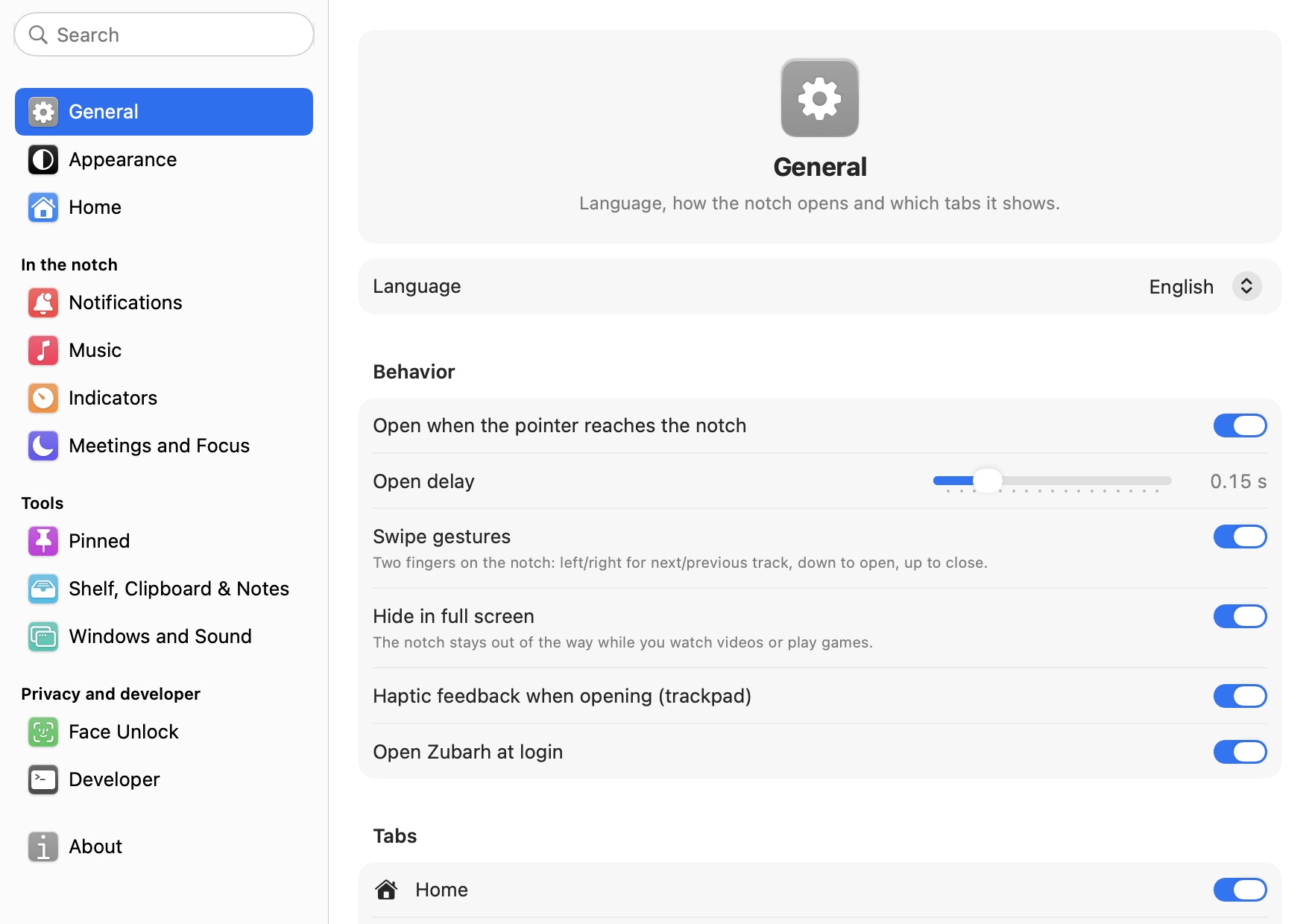
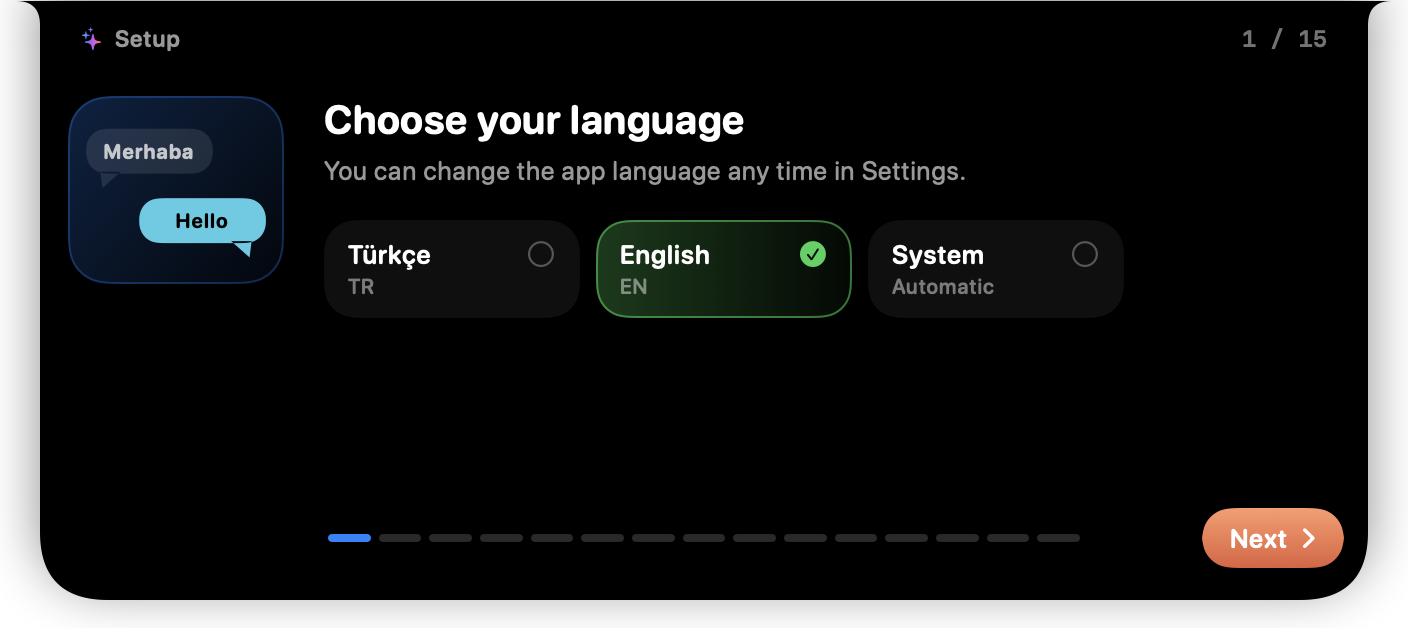
Language, opening on hover and its delay, swipe gestures, hiding in full screen, opening at login and which tabs show.
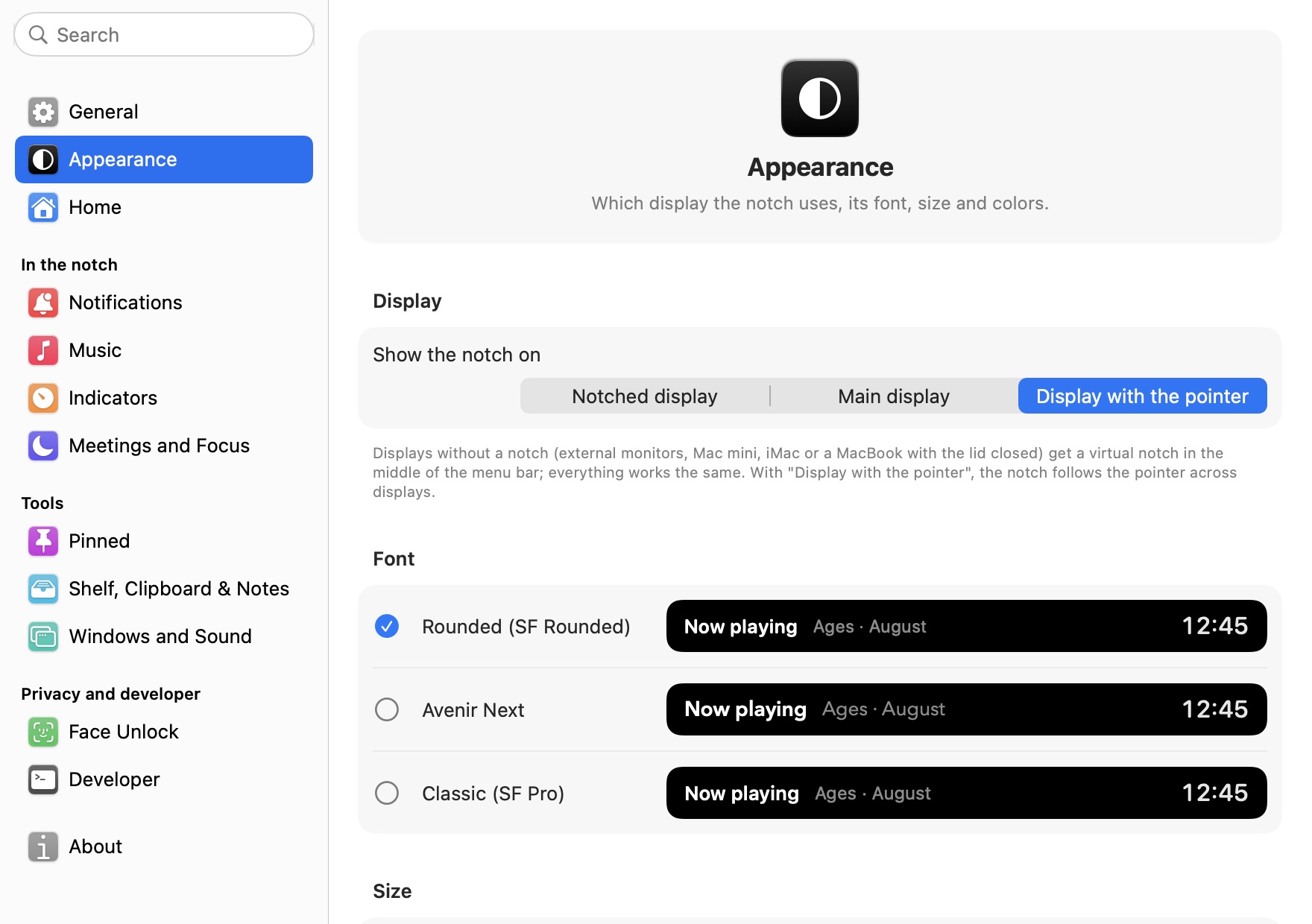
Which display the notch appears on, the font (SF Rounded, Avenir Next, SF Pro), open notch size, accent color and the glass look.
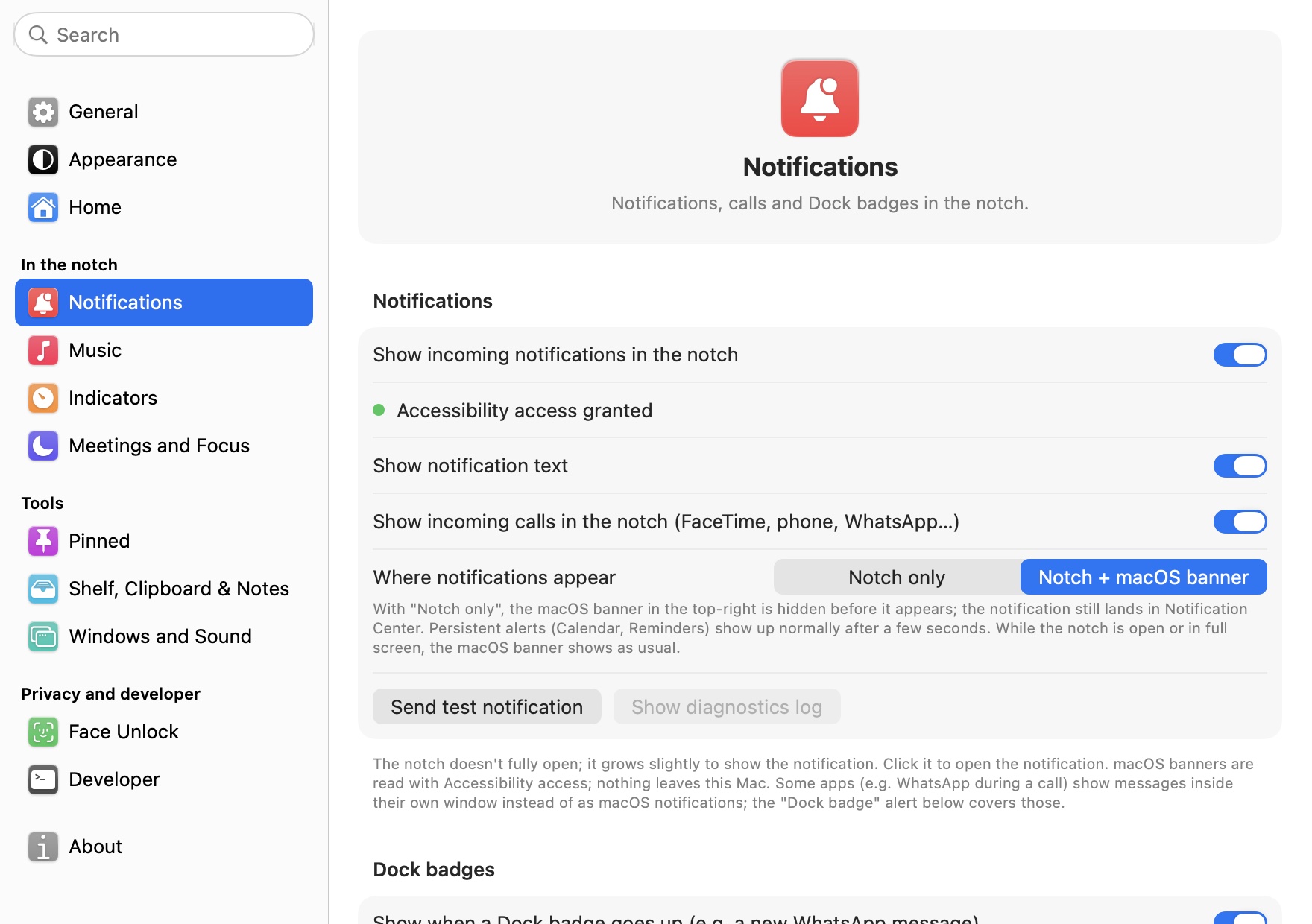
Notifications and where they appear, notification text, incoming calls and Dock badges. “Try it” buttons show each one in the notch right away.
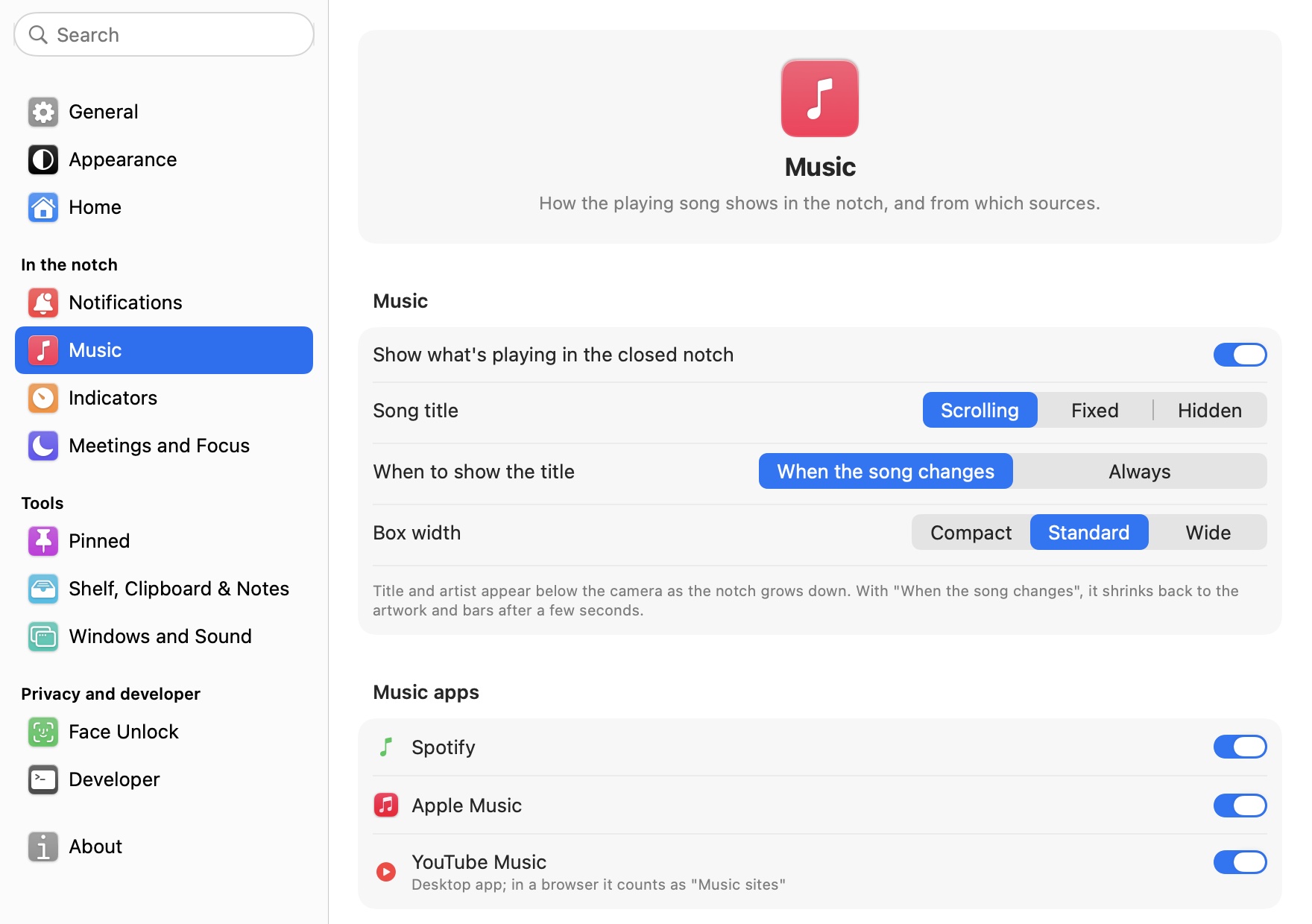
How and when the song title shows, with separate switches for music apps, browsers and other apps. Keep Spotify, and keep browser videos out of the notch.
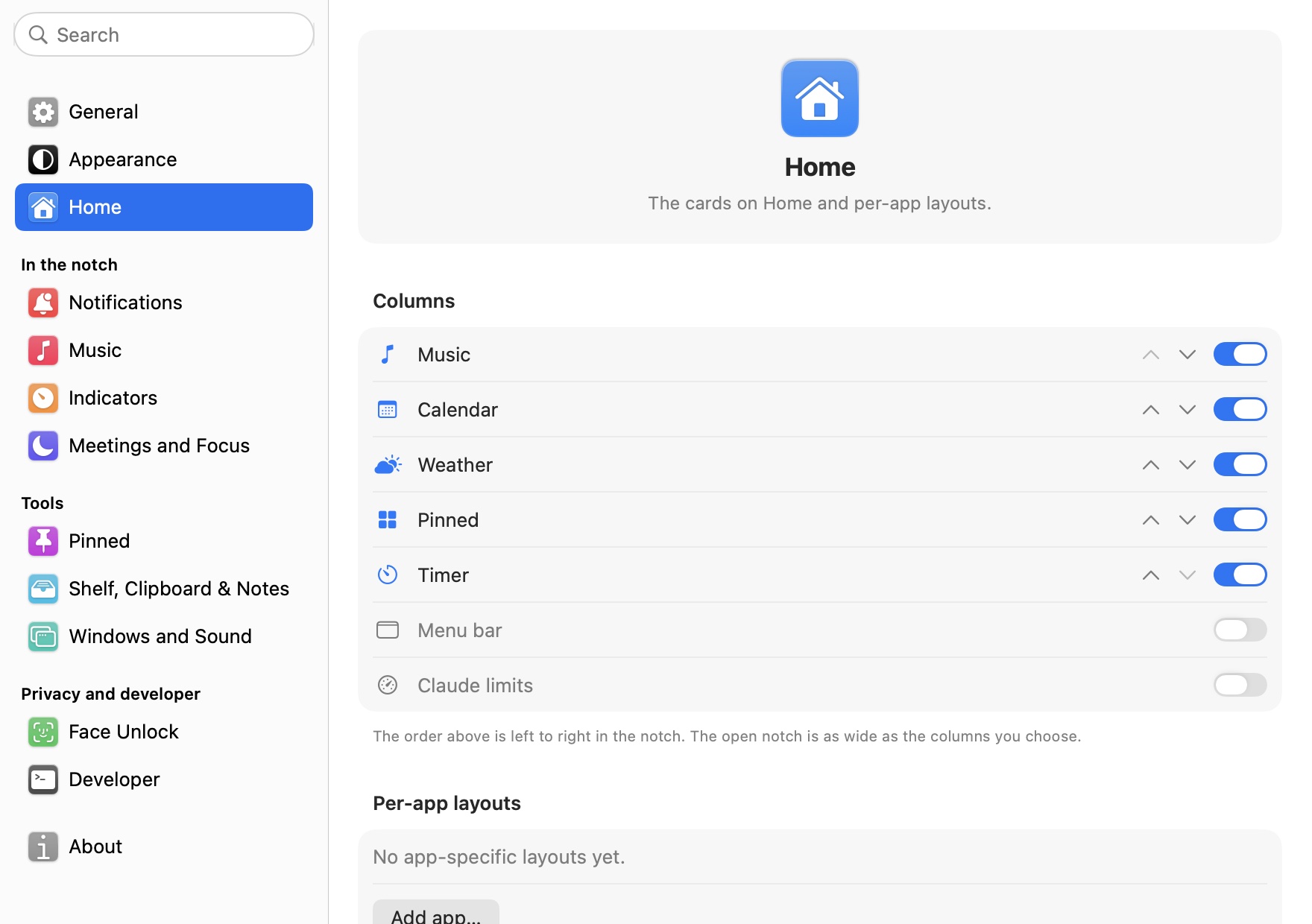
Turn Home cards on and off and reorder them. Pick a layout per app: timer and pinned items in VS Code, only music in Spotify.
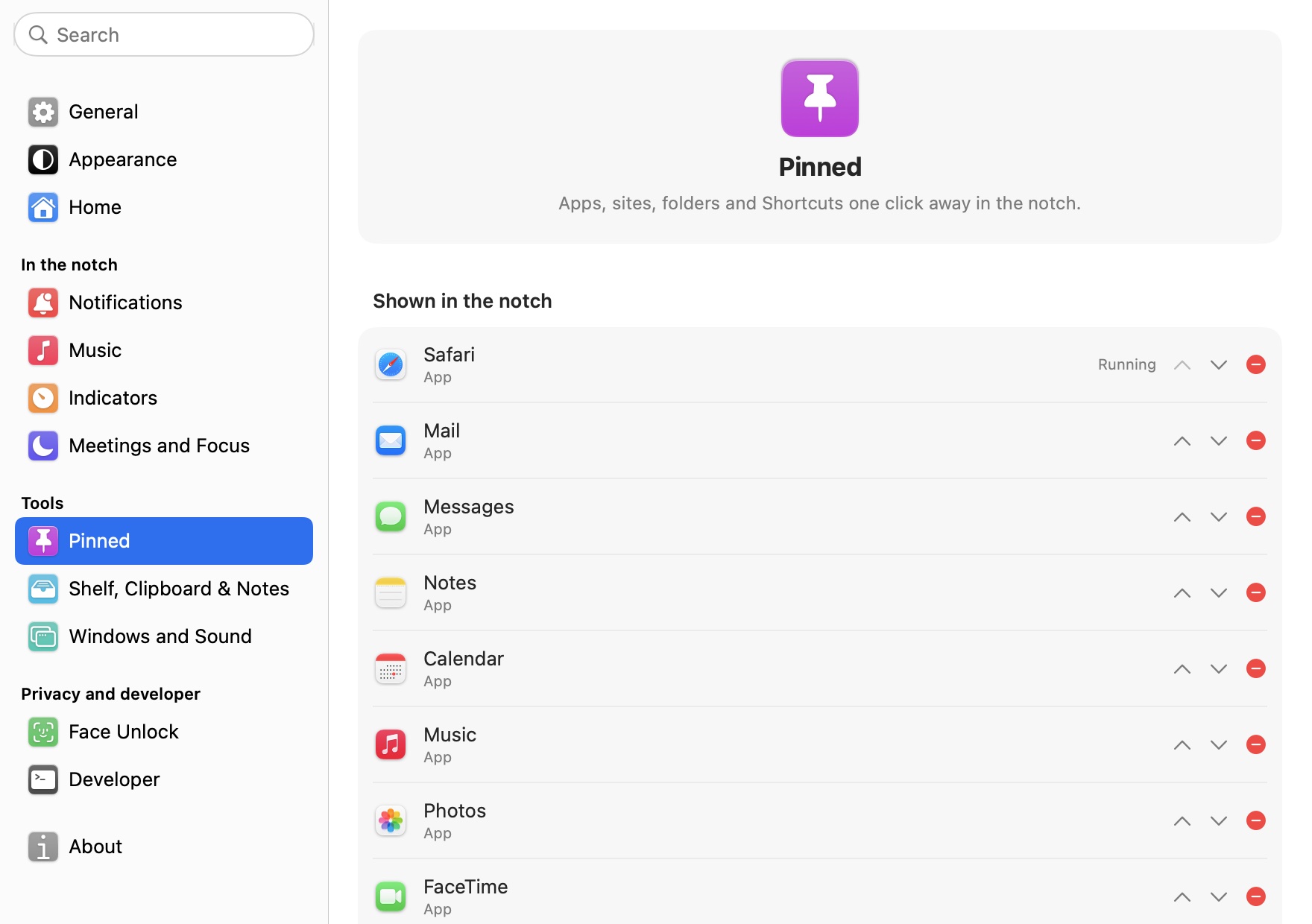
Apps, sites, folders and Shortcuts one click away in the notch. Reorder with the arrows and remove with minus; running apps are marked.
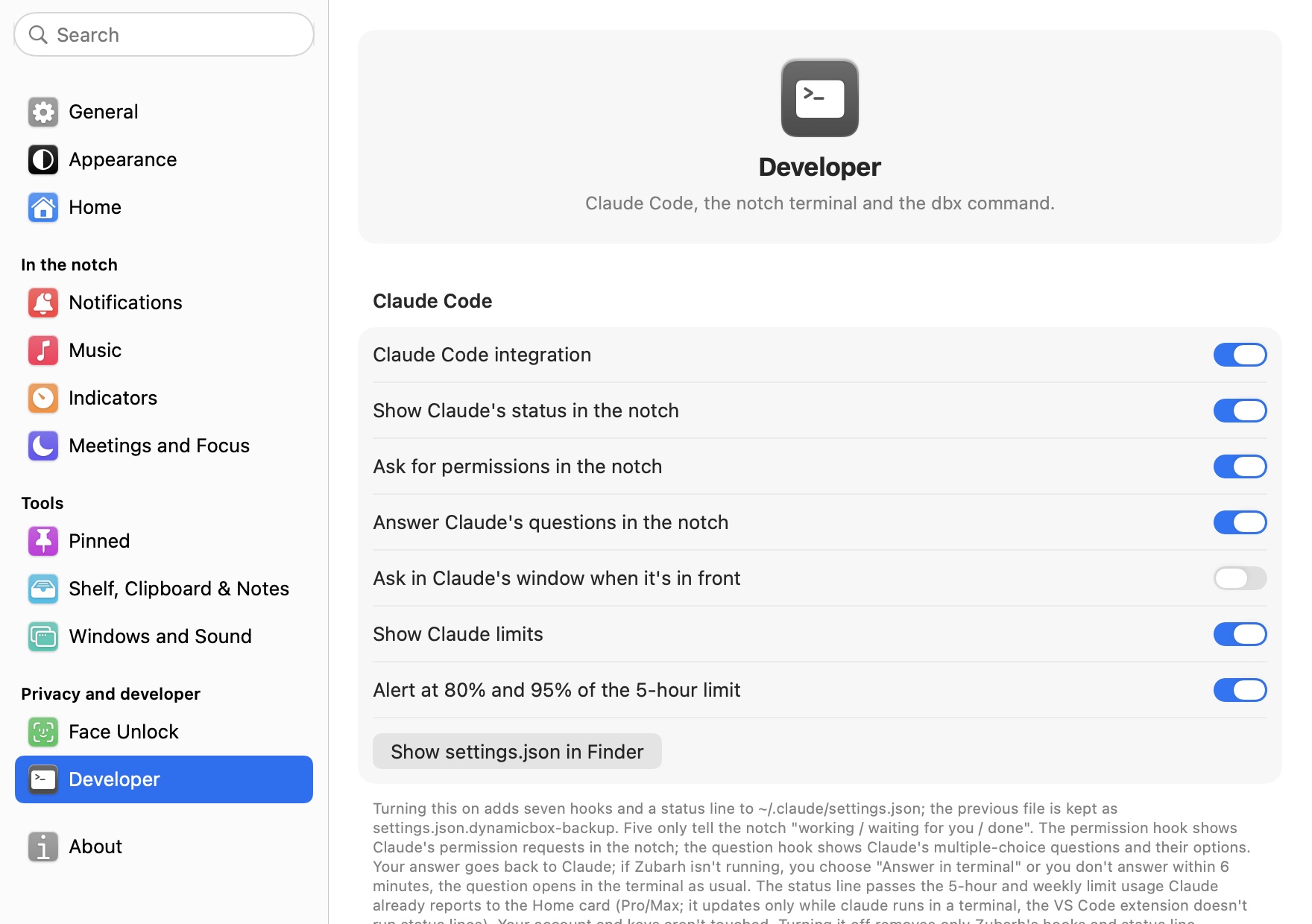
Claude Code integration, permission requests, questions, limits and alerts; installing the dbx command; the notch terminal's height and font size.
Volume, brightness, charging and download indicators appear in the notch instead of macOS's own. The rest is below.

Notifications, clipboard history, the shelf, your face data and your password stay on this Mac.
The internet is used only for weather (Open-Meteo), the icons of sites you pin (Google), update checks and license checks (Lemon Squeezy); see the Privacy Policy. Setup explains each permission separately; skip the ones you don't want and those features stay off.
| Permission | When it's requested | What for |
|---|---|---|
| Accessibility | At the Notifications step in setup | Reading notification and call banners, menu bar icons, window snapping, typing your password on the lock screen |
| System Audio Recording | The first time you turn an app's volume down | Per-app volume (nothing is recorded) |
| Bluetooth | At the Bluetooth step in setup | Telling you when a device connects |
| Camera | The first time you press Mirror or “Set up my face” | Mirror, face unlock |
| Location | When you choose “Use my location” for weather | Weather (not needed if you pick a city) |
| Calendar | When you press “Allow calendar access” | Events |
| Desktop folder | On your first screenshot | Adding screenshots to the shelf |
| Microphone and speech recognition | Your first voice note | Voice notes (on device) |
| Controlling Notes | The first time you save a voice note to Notes | Creating the note |
Zubarh is notarized by Apple. Download it, drag it to Applications and open it: no approvals in System Settings, no Terminal commands.
Zubarh-1.0.4.dmg, 9.8 MB. One file for both Apple Silicon and Intel Macs.
The download link is coming here very soon. One file for both Apple Silicon and Intel Macs.
In the window that opens, drag Zubarh onto the Applications folder next to it.
Open Zubarh from Applications. As with any app downloaded from the internet, macOS asks once whether you're sure you want to open it; choose “Open”. The app doesn't appear in the Dock; reach Settings from the capsule icon in the menu bar.
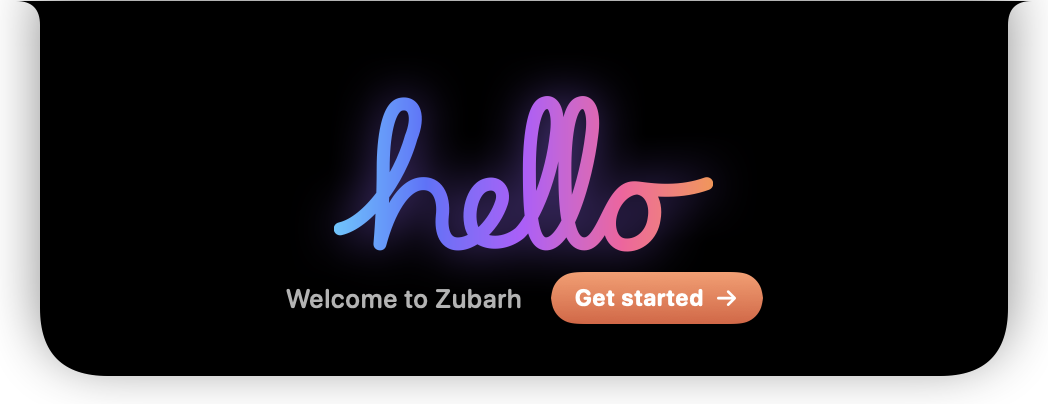
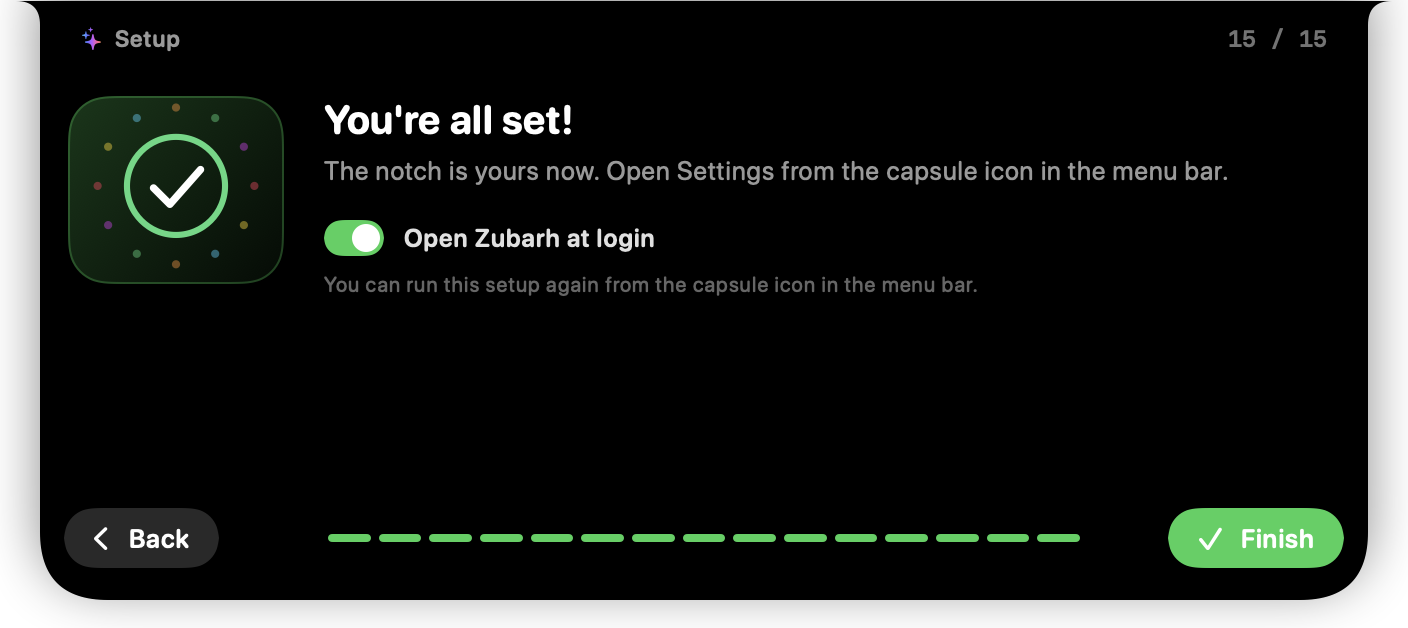
The notch widens a little and writes “hello” by hand. Choose “Get started” and 15 steps play out inside the notch, each with a small animation of the feature and live permission status. Skip any step with “Skip for now”; you can run setup again later from Settings › About.
SHA-256 (Zubarh-1.0.4.dmg): 4d1a060edebed1a3d26d0e6228cb0dc2e2cebb1bdaacdad443f249d8c74c61de · Check: shasum -a 256 ~/Downloads/Zubarh-1.0.4.dmg
Zubarh is updated often; here's what changed in each version.
Yes. On an external display, a Mac mini, an iMac or a MacBook with its lid closed, a virtual notch appears in the middle of the menu bar. Choose which display it appears on in Settings › Appearance.
App Store apps have to run in a sandbox. Zubarh's most-used features need to step outside it: reading notifications and incoming calls, seeing what's playing, a terminal in the notch. So it's distributed directly from here.
No. Notifications, clipboard history, the shelf, your face data and your password stay on this Mac. The internet is used only for weather, the icons of sites you pin, update checks and license checks. See the Privacy Policy.
Yes. The Claude Code part is optional. Skip the “For developers” step in setup and no settings file is touched.
Limits come from Claude Code's status line in the terminal, and the VS Code extension doesn't run status lines. The card updates as you use claude in a terminal. Requires a Pro or Max plan.
macOS 14 Sonoma or later. One file runs on both Apple Silicon and Intel Macs.
Everything is on for 7 days and no card is needed. When the trial ends, Zubarh locks: opening the notch shows only the Premium panel, and your settings and data stay as they are. The moment you enter your license, everything picks up where you left off.
Yes. On the old Mac choose “Remove from this Mac” in Settings › Premium, then enter the key on the new Mac. You can use it on as many Macs at once as your plan includes.
In Settings › Premium › “Orders & subscription”, or with the link in your purchase email. If you cancel, Premium stays on until the end of the period you paid for.
Yes. Write to gezersuumur@gmail.com within 14 days of buying and we'll refund you in full. See the Refund Policy.
claude runs in a terminal.If you turned on the Claude Code integration, turn it off first in Settings › Developer; that removes Zubarh's hooks and status line. Then quit from the capsule icon in the menu bar and move the app to the Trash.